3D Trailer Configurator: Plan Pallet Loads and Loading Metres Online
Will the next consignment still fit? How many loading metres are left after the first three clients? The 3D trailer configurator answers both on screen: pick a trailer, add pallets and watch the load take shape, with the numbers updating as you go.
What the configurator does
The 3D trailer configurator is a load planner for road freight. You describe the cargo — pallet type, size, height, weight and whether something can go on top — and it places the pallets inside a 3D model of the trailer.
It was built for groupage: a trailer filled with consignments from several clients, where every metre saved on the layout is a metre you can sell to the next shipper. That is why the main number on screen is not “how many pallets fit” but “how many loading metres are taken and how many are left”.
Step 1: pick a trailer
The trailer menu at the top lists seven load spaces. All sizes are internal, the space you can actually load:
Curtainsider 13.6 — 13.6 × 2.48 × 2.7 m, 24 t: the standard European semi-trailer, 34 EUR pallets on the floor.
Mega (lowdeck) — same floor, 3.0 m high, which leaves room for stacking.
Reefer — 13.3 × 2.45 × 2.6 m, 22 t: thicker insulated walls and a heavier body.
Container 40′ HC and Container 20′ — 2.35 m wide, too narrow for three EUR pallets across.
Road trains 7.7 + 7.7 and 8.2 + 7.2 — a truck body and a trailer body with a drawbar gap between them.
You can switch trailers at any time; the pallets you have added are laid out again in the new load space.
Step 2: add your clients and their pallets
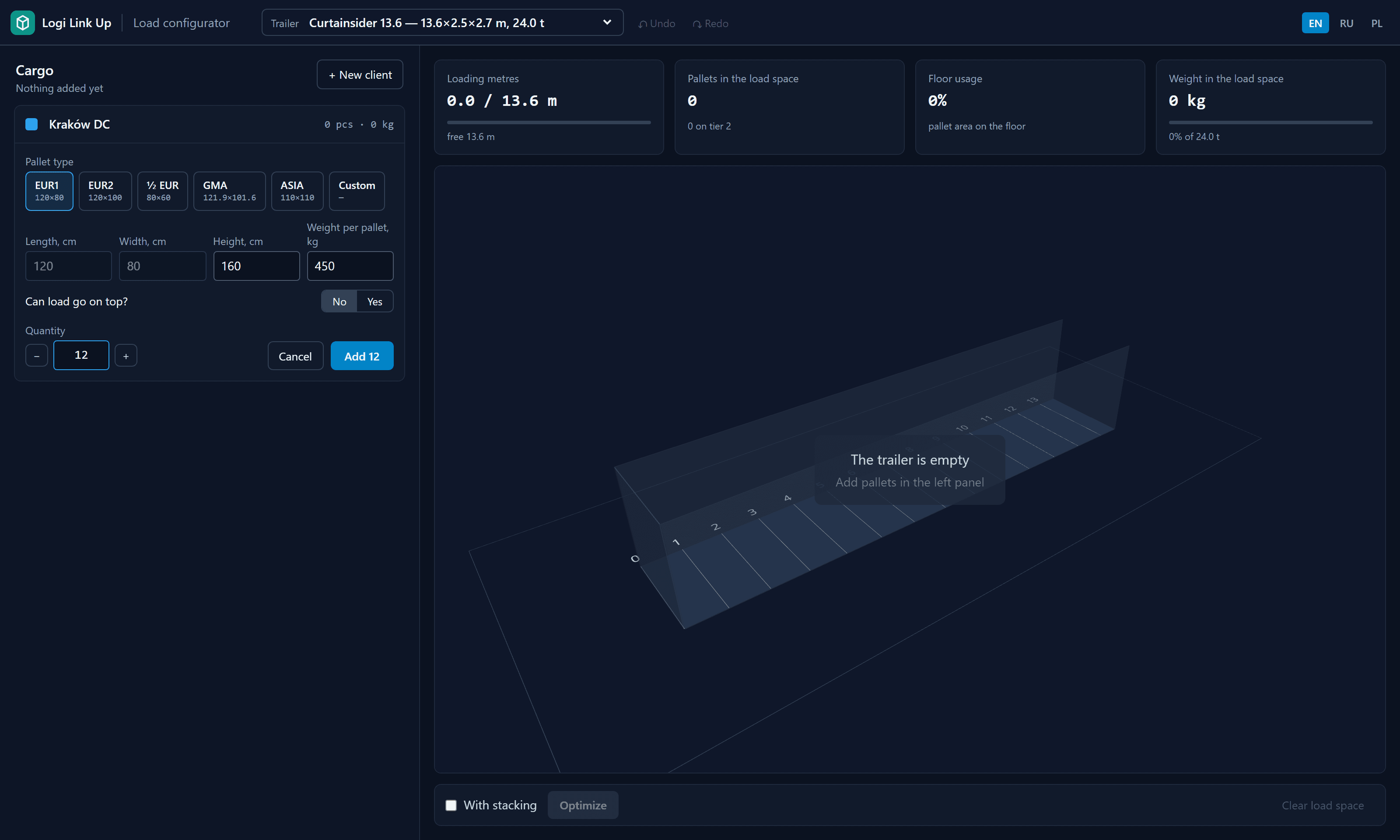
Press + New client, give it a name and describe what it ships: the pallet type (EUR 120×80, EUR2 120×100, half 80×60, GMA, Asian 110×110 or a custom size), the height and weight of one pallet, whether load can go on top, and the quantity.
Adding a client: pallet type, height, weight, stacking and quantity in one form.
Up to 200 pallets go in with one click, and each one is placed automatically in the first free spot from the front of the trailer. Clients are optional: you can also add pallets without one and assign them later.
Step 3: read the four numbers
Four cards above the scene update with every change:
Loading metres — how deep into the trailer the load reaches, out of the total, and how much is still free.
Pallets in the load space — including how many stand on the second tier and how many did not fit.
Floor usage — the share of the floor covered by pallets. A low number at high loading metres means gaps worth optimizing.
Weight in the load space — total weight against the trailer's payload.
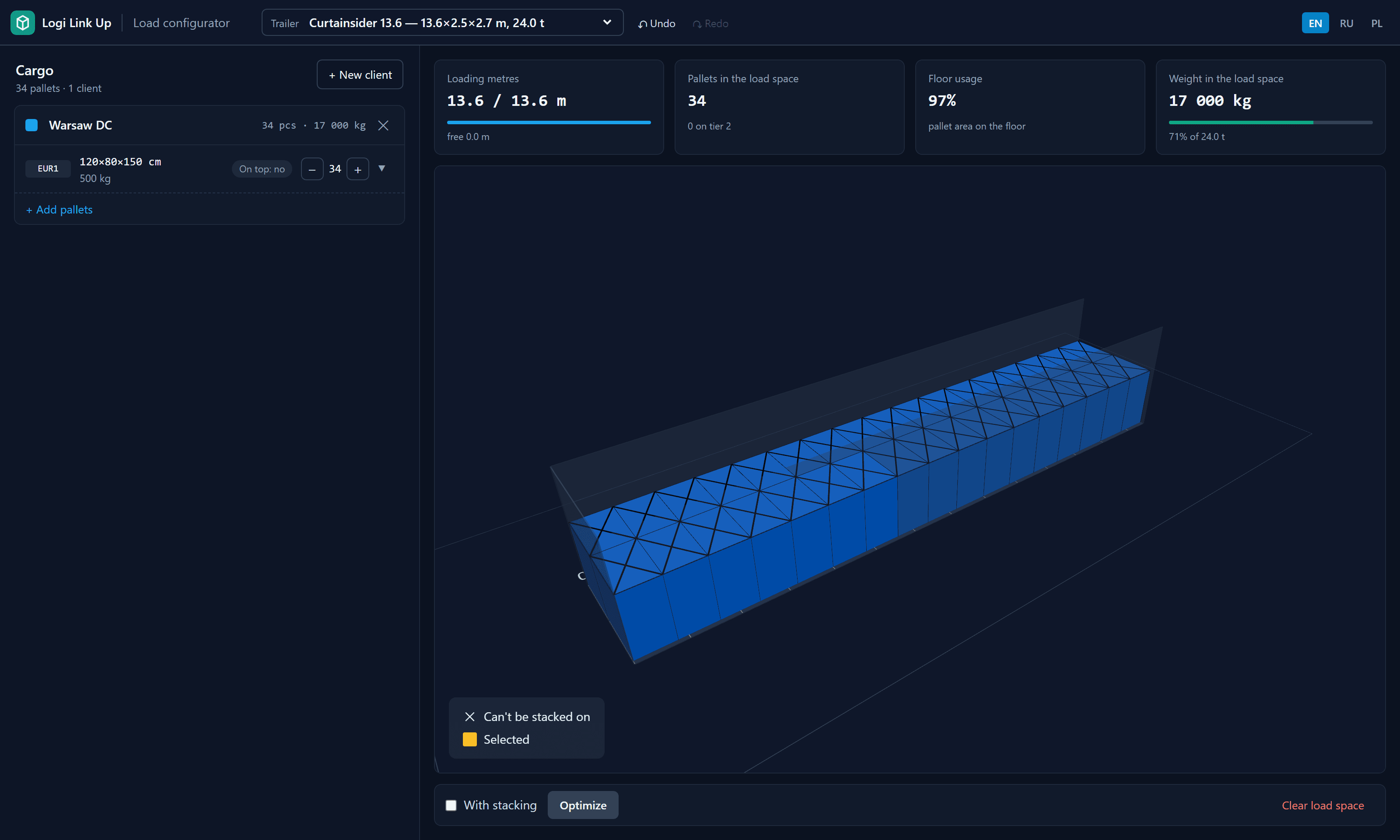
A full curtainsider: 34 EUR pallets, every loading metre taken, 71% of the payload.
Groupage: every client in its own colour
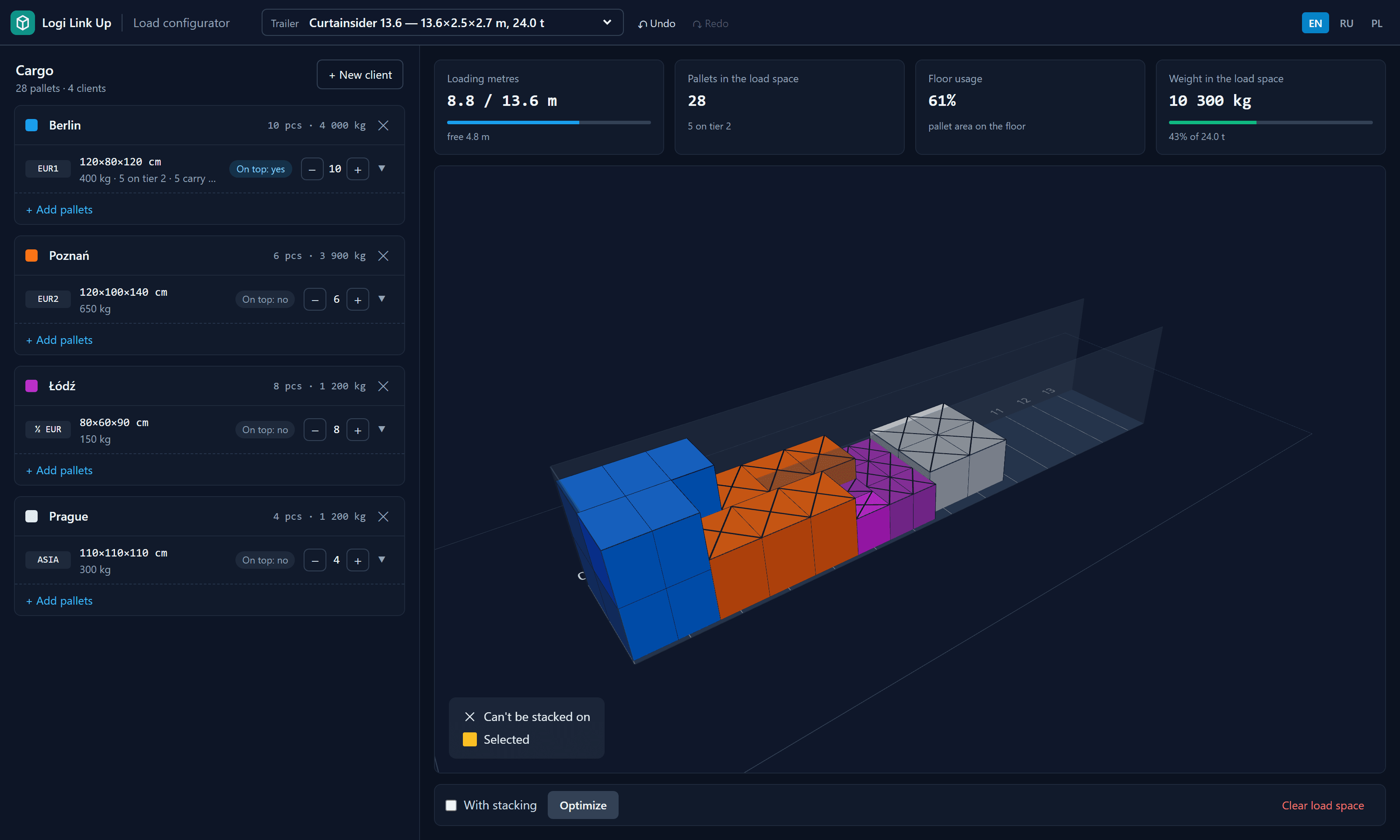
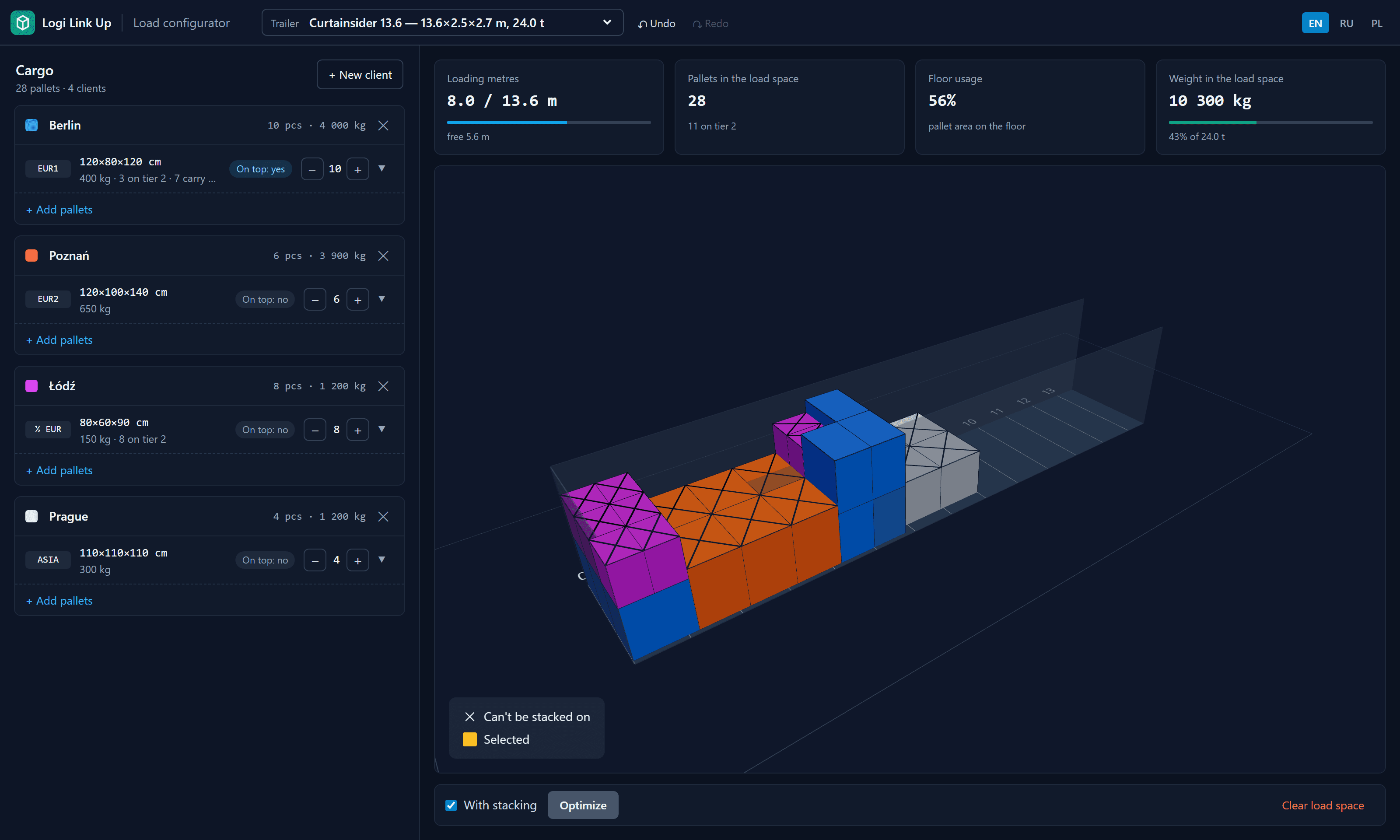
Each client gets a colour, so in the 3D view you can see at a glance where each consignment stands. The cargo panel on the left lists clients with their pallet count and total weight.
Four clients, four pallet types: 8.8 m taken, 4.8 m still free for the next consignment.
This is the view for the everyday question “can we still take that order?”: the free metres are right there, and the trailer floor is marked every metre.
Fine-tune by hand
Drag any pallet. A ghost shows where it would land — green if it fits, red if not — and it snaps to the walls and to its neighbours.
Rotate a pallet by 90° with the R key or the button in the cargo panel.
Edit a row: change the quantity with + and −, switch stacking on or off for the whole row, or delete it.
Undo and Redo every step, including optimization and clearing the load space.
Optimize: a tighter layout in one click
Pallets added one by one are placed where there is room at that moment, which rarely gives the shortest load. Optimize rearranges all of them to take as few loading metres as possible. Tick With stacking to let it put stackable pallets on two tiers.
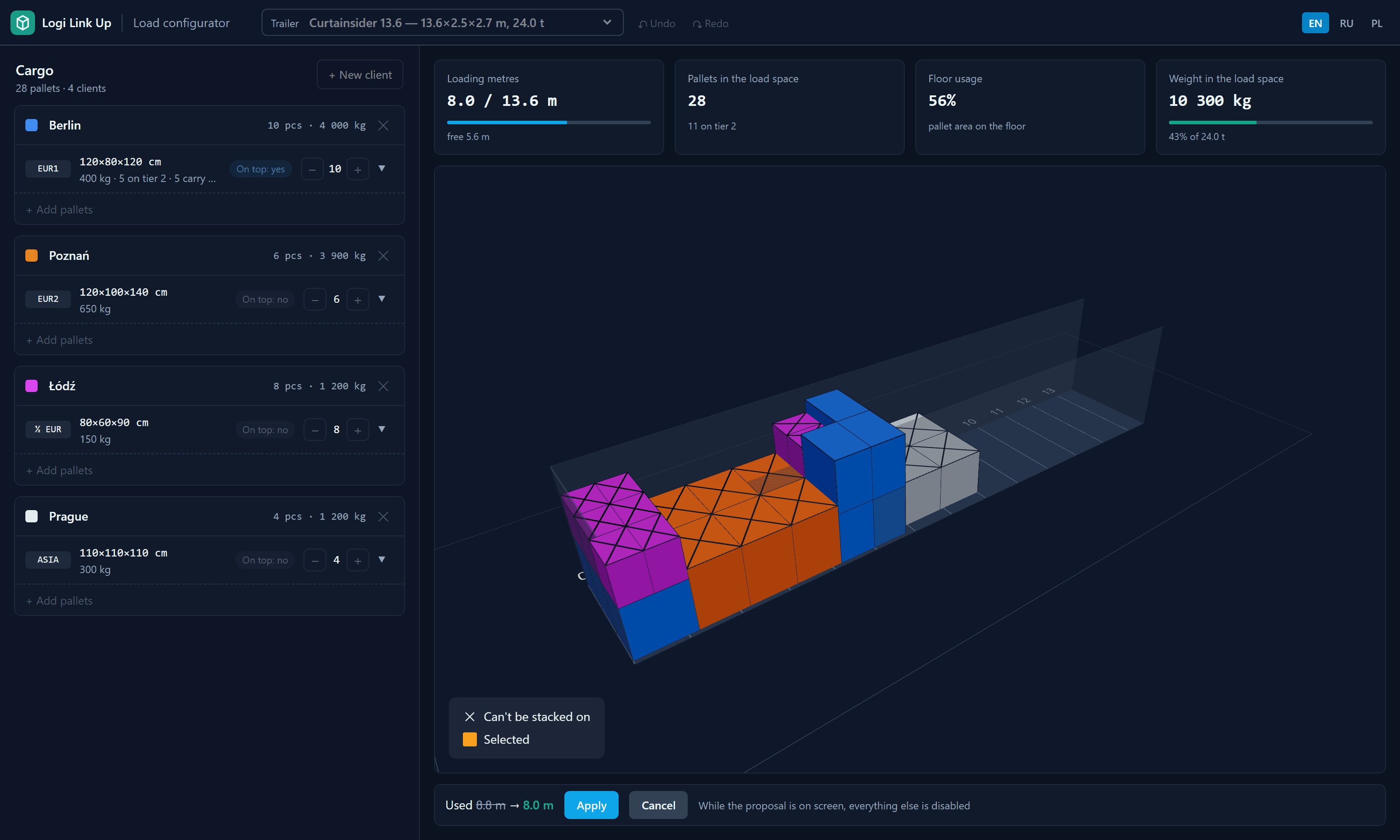
The proposal is shown first: here 8.8 m drops to 7.9 m. Apply it or cancel.
The result is a proposal, not a change: the new layout and the loading metres before and after are on screen, and nothing moves until you press Apply. If no tighter layout exists, the configurator says so and leaves your load alone.
After Apply: the freed metres are at the rear, ready for the next consignment.
Stacking follows the rules you set: only pallets marked “load can go on top” carry anything, there are never more than two tiers, and the stack always fits under the trailer's internal height.
Road trains: two bodies, two numbers
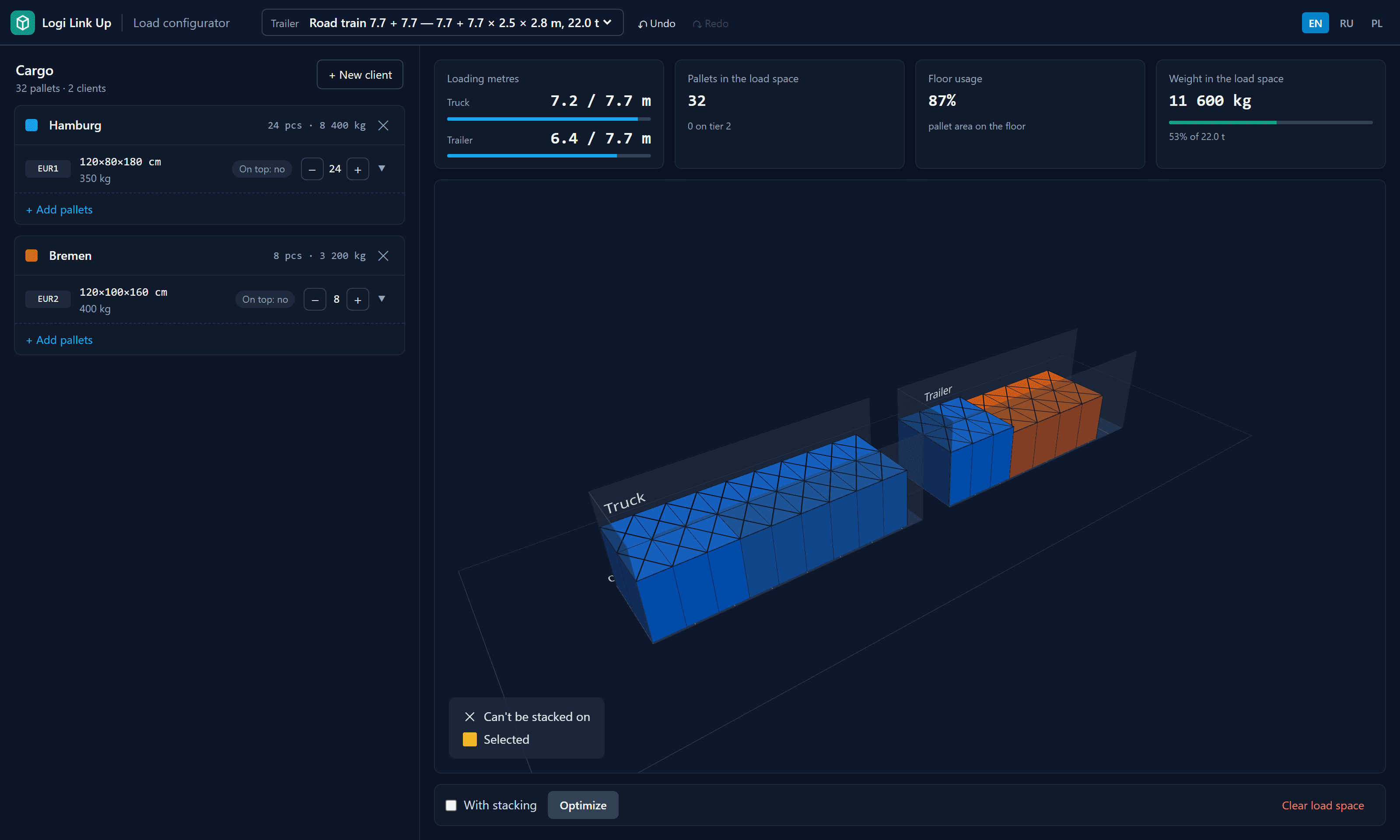
A road train (jumbo) has a truck body and a trailer body with a drawbar gap between them. The configurator treats them as two separate floors: a pallet stands entirely in one body, and loading metres are shown for each.
Road train 7.7 + 7.7: loading metres for the truck and the trailer separately.
The optimizer fills the truck body first, which is how most dispatchers load a jumbo.
Overload and pallets that do not fit
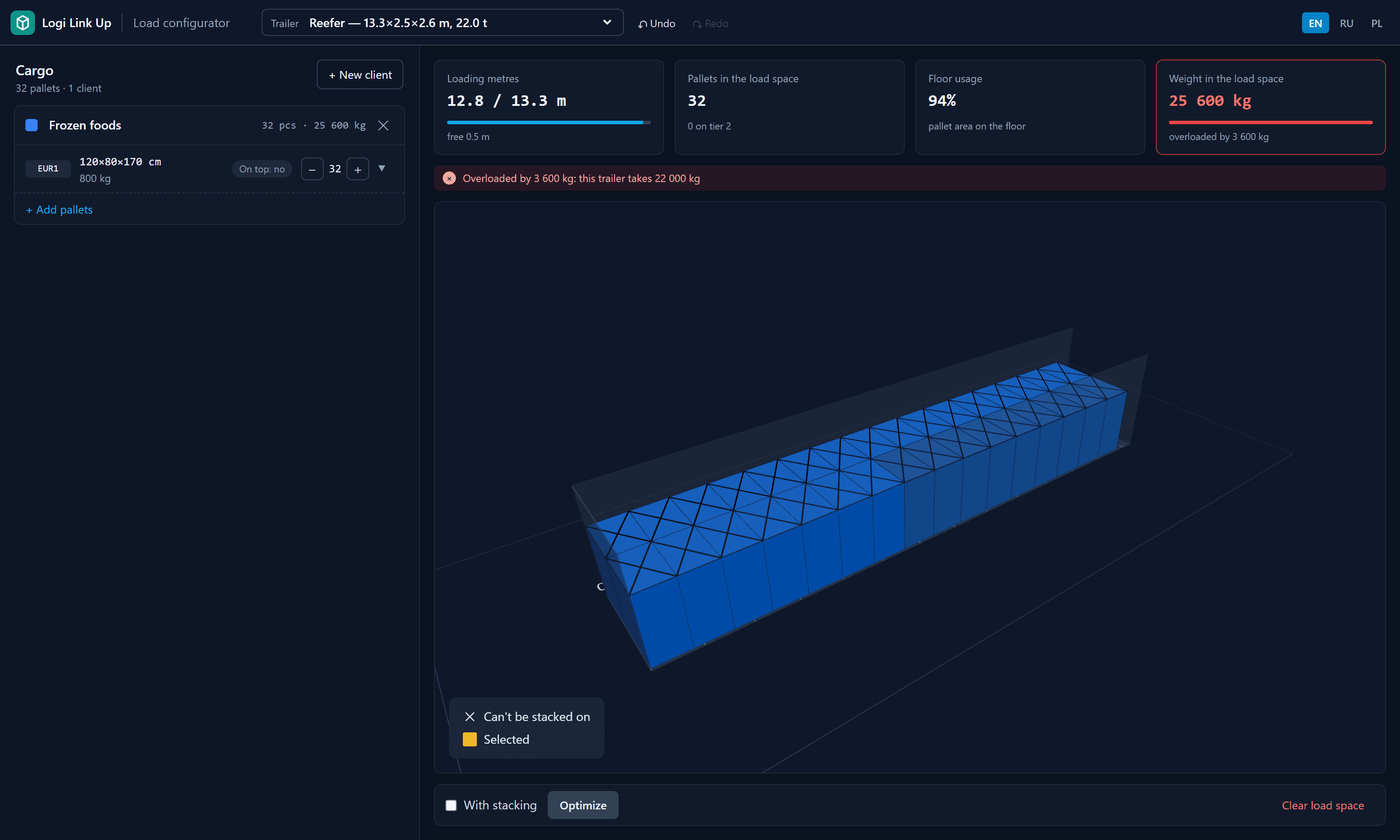
Space is only half the question. When the total weight goes over the trailer's payload, the weight card turns red and a banner says by how much.
A reefer takes 22 t: 32 pallets of 800 kg are 3.6 t too many.
Pallets that do not fit in the load space are not lost: they stand outside, below the trailer in the scene, and a banner counts them. Drag them in when room frees up, or switch to a bigger trailer.
Who it is for
Groupage forwarders who sell the trailer by the loading metre and need to know what is left.
Dispatchers and transport planners checking whether an order fits before confirming it.
Shippers preparing a load plan for the warehouse or explaining to a carrier how many metres they need.
Frequently asked questions
Do I need to install anything or create an account?
No. The configurator runs in the browser at truck.logilinkup.com. Open the page and start adding pallets.
Which trailers are available?
A 13.6 m curtainsider, a mega (lowdeck) trailer, a reefer, 40′ High Cube and 20′ containers, and two road trains: 7.7 + 7.7 m and 8.2 + 7.2 m. All sizes are internal dimensions of the load space.
Can I use my own pallet sizes?
Yes. Besides EUR, industrial, half, GMA and Asian pallets, choose Custom and enter the length and width yourself, along with height and weight.
How does stacking work?
Each row of pallets has a “Can load go on top?” switch. Only pallets with it switched on can carry a second tier, and the configurator never goes above two tiers or above the trailer's internal height.
What does the Optimize button do?
It looks for a tighter layout of the same pallets, with or without stacking, and shows how many loading metres it would take. Nothing changes until you press Apply.
Which languages does it support?
English, Russian and Polish. The switcher is in the top right corner and keeps your load when you change language.